Showing posts with label graph. Show all posts

Tuesday, January 8, 2013

Mind the Gap

I want to share an idea I saw at a conference last month. Presented by Paul Stern of the Vancouver Public Schools, it was one of two very intriguing concepts for working with assessment data. Fair or unfair, schools are the subject of a lot of comparisons---how well they perform against other schools in their area, state, or even nationally and internationally, as well as internal comparisons that look at scores from year to year. We can think of lots of reasons why these "apples to oranges" discussions are cagey---everything from the populations schools draw from, to the curriculum used, to teacher quality, parent involvement, and so forth.

Perhaps the biggest of these---in terms of what school staff discuss or dismiss---is the percent of students eligible for free/reduced lunch (FRL). Often used as a measure of poverty, the greater the percentage in a given school, the greater the population living at or below the poverty line. There are some quarrels with using this. For example, the percentage decreases as grade levels increase---that is, there are far more students in kindergarten who are eligible vs. high school seniors. This may be due to underreporting at upper grade levels (a kid doesn't want to appear different in front of peers, and so the paperwork doesn't get turned in), or simply that as children age and become more independent, it's more likely to find two working parents outside the home (and therefore more income). But, we'll set this aside for today's discussion.

So, here's a chart that will serve as the starting point for us.

The dots on this chart represent every school in the state of Washington for which data were available on performance of 8th graders on the state math test and percent of students eligible for free or reduced price meals. The dark orange trendline tells us about what we'd expect: the greater the percent of students eligible for FRL, the lower the percentage of students meeting the standard (a/k/a "passing the test"). They straight beige line shows the statewide percentage for meeting the standard on the 8th grade math test.

Looking at this might engender some questions about schools that don't fit the overall model. In the lower lefthand corner, we have schools with a low percent of FRL...but poor performance on the test. And in the upper righthand corner, we have a few schools with a large percent of FRL, but are doing better than the statewide performance. What are those schools doing, I wonder?

But let's say that you're in a large district, like Seattle. It's likely there are conversations about students achievement at the middle school as it relates to poverty, but we can dig deeper than that. We might expect a certain level of performance, based on the model shown above. But using the model to supply a context will allow us to remove poverty from the discussion---in other words, what is the gap in performance between the predictive model and the actual score?

Here is the same chart, with Seattle schools highlighted (click to embiggen):


As we can see, some schools, are below the trendline---they didn't score as well as predicted. Others are above the trendline---they performed better than predicted. To help visualize this a little better, let's zoom in on two of the schools.


The arrows point to the predicted performance of McClure and Pathfinder. Based on their percentage of students eligible for free/reduced lunch, we would have expected them to score around the state level (~55%). However, McClure scored 13 points above this...and Pathfinder 6 points below.

We can also build a chart to take a broader look at the various gaps between predicted and actual performance. Using the handy-dandy formula for slope that Excel provides for this trendline (y = -0.362x + 68.088), we can substitute the percent of FRL for x and find the predicted performance based on the trendline (y).

See? Your Algebra teacher knew learning about slope would come in handy someday.

Using one of the stock charts in Excel, we can visualize this to get a better idea of the differences in performance.The schools are organized, left to right, by their predicted performance. The dot at the end of each line represents their actual performance. The length of the lines shows the difference.


This chart helps us see things in a new way. For example, Madrona has the highest percentage of FRL out of these schools, but their gap in terms of expected performance is certainly not as big as Cascade or Orca. Hamilton has the lowest percentage of FRL and the highest actual math scores in the district, but it is not the school that best outperformed expectations. This also allows us to see that schools like Jane Addams and Madison, while still performing below the state average, are outperforming expectations (if only by a small margin). We don't celebrate our successes nearly enough in education. Maybe that's because we don't look for them like this.

Again, the idea here is to remove poverty levels as the focus for explaining the differences between schools. Doing so allows us to look for deeper answers about curriculum and instruction. This is not to say that socioeconomic status has no impact---just that dismissing low performance because of is not the whole story.

I've used public data available here to model these charts, but you could substitute other indicators. Education is certainly not all about the test---and schools shouldn't be judged on a single measure. But I do think that this could be a powerful starting point for schools and districts.

Sunday, June 3, 2012

Rebuild, Reuse, Recycle

As part of an upcoming workshop, I've been rebuilding a spreadsheet developed by someone else to use as a communication tool. The good news is that I was handed most of the necessary formulas. The bad news was that I needed to completely start from scratch with the design, and I still had a lot to learn along the way. This spreadsheet was like Steve Austin, even if it wasn't a $6M spreadsheet.


Here was my to do list:
  • How do you get Excel to display ordinal numbers?
  • Can you make something that looks like a number line...and add dynamic data to it?
  • How do you display a normal curve...and add dynamic data to it?
Fortunately, between Google, YouTube, and Twitter, I was able to make short work of this list. Here is how everything is coming together. This is very much a work in progress---so if you have ideas to help make this awesome, I'd love to hear them.

The goal here is to allow a user to input a value for Effect Size and see how that relates to a variety of other measures: an Improvement Index, the standard deviation, and variance.


Below the space for input, I have set up the space for the other measures.

Before we talk nuts and bolts, I want to talk a little about design here. This is a tool that will be handed off for others to use---and has to enable them to communicate with their own stakeholders. Whatever gets placed in the workbook has to be both rich in meaning and self-explanatory. I want a very simple layout and colour scheme to help direct the eye. I also want to be sure that even if someone is not comfortable with statistics that they could still gain some insight from the graphics. The baseline information in the sheet remains grey; values turn green. This is what a user would see if the effect size is .4:


So far, I like it. I'm wondering about adding some conditional formatting to indicate the strength of an effect. In other words, is an r value of .2 "good"? It may be too much to put here, but it would be great to have a way to help people compare or evaluate what they see. For example, in the education world, an effect size of .4 is the average. Anything below that still represents something effective, but if you're looking to make a big impact in the classroom, perhaps that particular strategy might not be the best. Is this important to add? What about other explanations/resources?


Okay, so let's take a bionic jump into the nuts and bolts and the questions I had above. The first one, about ordinal numbers, came from developing the text shown on the right. The sentence you see is based on a formula: some text in quotes, the "&" symbol, and cells with the dynamic values (in this example, 66% and 66th). But Excel has no function for displaying ordinal versions of numbers. So, how do you tell Excel when to use st, nd, rd, or th at the end of a number?

According to Teh Googles, you use this formula =A1&MID("thstndrdth",MIN(9,2*RIGHT(A1)*(MOD(A1-11,100)>2)+1),2), where "A1" equals the cell with the number you want to add the ordinal ranking to. I grabbed the formula from here, and the post also includes an awesome explanation of why it works. In my spreadsheet, I used three cells for this. The first was for the actual calculation using the NORM.DIST function (=NORM.DIST(EffectSize,0,1,TRUE). Even though I can choose to display the results of that cell using two digits, Excel is sneaky and remembers the whole string. So, as an intermediate step, I had Excel take the contents of the cell and change it into text =TEXT((D2*100),"0"). Now it can't use a long trailing decimal. Take that! I used the contents of this cell for the ordinal formula.

A magic button to insert a normal distribution is missing, too. Are we or are we not living in the 21st century? No flying cars. No "normal" chart in Excel. WTH? My kludge, in this case, was taken from a YouTube video and workbook that I grabbed information from ExcelIsFun. I copied values from the workbook and created a basic area graph. For the dynamic green region, I used the following formula =IF(H3<=Variance,I3,""), where "H3" was the cell with the value for the x-axis of the graph (I had to make all values positive) and I3 had the value I copied from the workbook---the one matching the grey graph. This creates a very narrow range of data points around 0 standard deviations, which are then added to the graph.

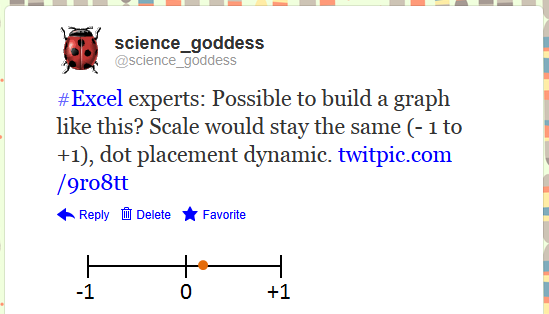
The answer for the final piece, the line-type graph for variance, came from a Twitter shout-out.
https://twitter.com/science_goddess/status/208628563790925826
I drew what I wanted, attached it to the tweet, and crossed my fingers for brilliant ideas to head my way. Here are the two I received:

https://twitter.com/BlaskEric/status/208635776714543104
https://twitter.com/Jon_Peltier/status/208748764951875585
I ended up deciding to just have the scale go from 0 to +1. There are negative correlations, but with the formula I was using from the original spreadsheet, there was no possibility of ending up with a negative result.

This has been a great small project to work on. It's also been a reminder that you don't have to know everything about Excel to get where you want to go. There's lots of help available from those who have previously solved problems. Makes it easy to rebuild, reuse, recycle the worksheets you have.

We can rebuild our workbooks. We have the technology. We have the capability to make the world's best spreadsheet. Our workbook will have that spreadsheet. Better than it was before. Better...stronger...faster...


Bonus Round
If you want to play around with the workbook, you can download it here. The final version will be made available at a workshop in two weeks, so if you have any feedback or improvements to suggest, get on it.

Sounds from the Bionic Woman and Six Million Dollar Man from here.

Saturday, May 19, 2012

Give Me That Old Time Religion

We are not new acolytes in the service of charts and graphs. Some of us may worship at the altar of Excel, but that does not mean others have not had their own methodology and purpose.

It is surprising how many schoolmen avoid charts and graphs as though their use required calculus and the practice of the black art. Successful practice of school administration is no different from the practice of business; both require the constant habit of visualization. Many problems of school administration involve the clear and concise presentation of facts and relationships. The stump speaker to the contrary notwithstanding, facts do not speak for themselves. Relationships have to be made vivid to be understood. Unless facts and relationships are presented in a manner at once clear and interesting, they are as useless as locks without keys. Charts and graphs present facts and relationships more forcefully, in less time, and require no more space than the same facts presented in words.
---Bowman, E.L. 1921. Graphic aids in school administration, article I: visualizing organization facts. American School Board Journal, 63(12), 29 - 31. 

Last month, I introduced you to E.L. Bowman---enthusiastic proponent of data visualization as watchtower for schools in the 1920's. I have two more of his articles to share. I like these little historical snapshots. Technology may have been a limiting factor in getting these ideas to take root, but there was still a lot of deep thinking happening about the potential of using data for educational purposes.

In the first article, Visualizing Organization Facts, Bowman extols the virtues of organizational charts like this one:


He also looks at flow charts for coursework and job responsibilities. Bowman includes rules for drawing and duplicating charts, while reminding us that "If [a superintendent] causes these plans to appear in the form of graphs, he makes easier the comprehension of his ideas by others." Mind you, he also likes the idea of using these charts to remind others who's the boss. (Not so different from today.) While I have rarely seen org charts used by schools and districts, I do think that visually presenting processes could be a very powerful tool for schools. What are the pathways for graduation? What interventions are available for students who need additional support for their learning? What are the next steps with behavioral issues? How could graphics help communicate with non-English speaking families about navigating school with their children?

The last article that I have (so far) is about Establishing Routine through Graphs. Here's my favourite quote from this one:
There is scarcely a state school system in the country ·that has not in the past called for unnecessary statistics in the compilation of its annual reports from subordinate districts. Much of the data thus demanded on pain of forfeiture of state subsidy was never used, but was embalmed somewhere in a bulky printed volume.

Remember, this was 80 years before NCLB. I'm telling you, the dude was ahead of his time. Anyway, in this article, Bowman focuses on the procedures schools use to make purchases, track time, and develop lessons.

In most cases, I feel like these visualizations are cumbersome and unnecessary. I'd hope that most of these "routines" are streamlined today, either due to better prepared workers or technological advances. I was amused at the end of the article to read Bowman describe the awesomeness that is having a calendar on your desk. Word.

If my forays into Google Books reveal any more of the long lost gospels of data viz in schools, I'll be sure to post them here. For now, go in peace.

Tuesday, May 15, 2012

Animated Graphs in PowerPoint

Charts and graphs are used to tell a story to an audience. And as with any good tale, you may want to parcel out one chapter at a time. There are lots of tools to help you get the job done, but today we're just going to look at moving your graphs into PowerPoint.

Last year, one of the presentations I was giving was about using cell phones in the classroom. At the beginning of the presentation, I was sharing some data about how students access the Internet. I had pulled data from two different Pew Internet studies. One had data comparing access to computers and cell phones, based on family income. The other had data reporting how teens used cell phones to access the Internet, also based on family income. There is a bit of a surprise in the data, so although I wanted to show the big picture, I wanted to portion it out so people would get the "A-ha!".

The easiest way to do this is to build three different slides: one for the first data set, one for the second, and one for both. But why do it the easy way? Instead, you can use some simple animation to reveal each piece of the puzzle.

Start by building the graph. I prefer to do this in Excel and then copy it into PowerPoint. Here is the full meal deal slide:


Now, I'm ready to add animation. At the beginning, I don't want the blue bars to show. The orange and green show what you might expect. As household income increases, so does access to a computer. Access to a cell phone is similar, but not as dramatic. To make the orange and green bars show first, select them and go to the animation tab. Then, select "By Series" under "Effect Options." I don't recommend fancy animations. Just because you can add spins and flashes doesn't mean you should. A simple fade is plenty.


This will make the first view people have of the slide look like this:


Then, "Add Animation" for the next series (the blue one) to appear...and for the orange series to disappear. Ah, now we can see something interesting: Students from lower income families use their phones the most for going online. (PS---don't you love how the green bars don't look like they're the same shade as the ones above? They're the exact same, but it's a good example of how colour is influenced by context.)


Finally, bring the orange series back for the final comparison.

If you want to see the finished product, you can use the embedded view below. The vagaries of SkyDrive mean that you will need to choose the full screen option to make the animations work. Once it opens, just use your right arrow or page down key to view the results.

Sunday, May 6, 2012

Ain't Misbehavin'

In the last post, we looked at one way to display information about non-academic behaviors in the classroom---things like work ethic, participation, and attendance. These are student attributes that we value and want to report on, but need to be separated from grades and other measures of learning.

Even though I am sure that I will revisit these ideas and fine tune the data displays over time, I thought I would lift the curtain to reveal the workbook innards. No doubt some of you would like to play, too.

Before we jump into the guts, I want to say that all of the attributes and scales are just examples. We could have a lively discussion about which attributes to measure, how you (or your students) could collect these data, and what the cut scores should be in order to be in the range of performance we'd like to see. These are critical pieces to consider...ones that I hope you ponder and kick around with your colleagues and students. I am going to set them aside in this post and strictly focus on the nuts and bolts.
 
On the Report Sheet, I set up a data validation for the students last names. I started by selecting the range of last names on the Attendance/Grade worksheet. I named the range "LastName." Then, on the Report worksheet in the cell where I wanted the dropdown to appear, I chose Data Validation on the Data tab. In the dialogue box, I selected List from the "Allow" dropdown and then in the "Source" box, I added a formula using my named range. For the "First Name" area on the Report worksheet and the selections at the bottom of each of the other worksheets, I used our old friend, the INDEX/MATCH formula.

Let's move on to a few new tricks. Most teachers keep attendance records by marking who is absent---not who is present. But on my graph, I wanted to chart attendance as a positive measure. There are a few ways to do this. The simplest would be to change the way we keep attendance. Mark students when they're present and just count up the number of days at the end of the grading period. I didn't take the easy way out. Instead, I left each "A" for Absent just where it fell. To get the total number of days present, I used this formula:  =30-(COUNTIF(C6:AF6,"A")). In other words, count the A's in a particular row (in this example, row 6 for Cathy Andrews) and subtract that number from the number of available days in the grading period (30). However, this swap won't work for creating the graphs. I need numbers to work with---not text. But a simple IF statement makes short work of that: =IF(C18=0,1,0), where "C18" is the cell from the INDEX/MATCH result for a particular student.

I also used a nested IF to have Excel convert the number of days attended (or points earned) into a level of performance. For example, here is the one that goes with the worksheets for Work Ethic, Participation, and Behavior:  =IF(AG6<=59,1,IF(AG6<=79,2,IF(AG6<=99,3,IF(AG6>=100,4))))
It looks worse than it really is. (Don't most things?) Notice the repeating "AG6," which is the cell with the total number of points I want Excel to use as a comparison. In the first part of the statement, we tell Excel that if that number is less than or equal to 59, to put a 1 in the cell. If not, Excel moves on to the next part of the statement. Even though we know that "30" is less than or equal to all of the cutoffs in the equation, Excel considers only one at a time.

Shall we talk about the graphs? I used the stacked bar from the charts menu. No doubt some of you out there will want to use a regular bar chart. That is appropriate, too. I picked the stacked bar for two reasons. One was that I wanted to do more than show a comparison. I wanted to illustrate a proportion. A viewer can certainly make that inference with a regular bar chart, but it's a little less work with the stacked bar. My second reason was purely about the aesthetics. I knew I was going to want a line graph in each of the four areas (attendance, participation, work ethic, behavior). The vertical real estate claimed by a bar chart threw off the look of things.

Anyhoo, after you select your data for the graph, don't fall apart of it looks like this:

Simply hit the "Switch Row and Column" option and you will see the stacked bar. After that, you can clean up the graph.

I won't go into detail with the line graph. What I will share is that it does take time to create the labels, standardize the sizes, and get everything in place. Take your time. Don't assume that Excel knows best. It's important to make things look good---otherwise, you are missing your chance to truly communicate with the data.

The radar/star/spider chart is found in the "Other Charts" menu. Again, this chart is not everyone's cup of tea. One of the ed research articles I read mentioned using the chart with college students as a form of feedback---and they hated it. This seemed to be due to the lack of familiarity with reading these types of graphs. We see line graphs and bar charts all the time. Radar charts? Not so much. There are other reasons not to choose this type of chart. For example, it works better with cyclical data. And, the area of the graph becomes distorted with the scale. For every point increase of the scale, the size of the area becomes squared.

I would suggest that if you select this type of chart to use with students (or parents) that you spend some time talking about how to read them. Show them how to look at the connections between the spokes and the area covered by the graph. Why did I choose it, given the difficulty in interpretation? Because the attributes of student performance are not simply about comparing them. There needs to be a broader view of what is happening in a classroom---how is the student performing in light of the overall goals...and more importantly, how might non-academic factors be affecting one another (as well as student learning)? I think that you lose some of these capabilities with a clustered bar graph.

What would you do differently with this workbook and these graphs? Would you choose to put the line graphs all on one chart for easier comparison? Do you like the idea of bar charts better than a stacked bar...and clustered columns instead of the radar graph? How would you organize the workbook?

Thursday, May 3, 2012

Oh, Behave!

There are two broad categories of grading practices in the great wide world these days. One is termed "hodgepodge," referring to the mixing of student learning and behaviors (e.g., work ethic, attendance...) into a single score. The standards-based version of grading does not crunch scores for learning with student behaviors. There are variations within each category, of course. Even though this blog has modeled various ways to look at student data within a standards-based context, we've never considered options for visualizing student behavior. Time to change that.

I've built a model workbook that tracks four types of non-academic factors: attendance, work ethic, participation, and behavior. Each of the worksheets looks a lot like the gradebook. Names are on the left, but there is a series of dates across the top. There are six weeks (30 days) in the model.

Yeah, Baby

And, there's a reporting page which pulls information from each of the four worksheets. A data-validation dropdown menu for the "Last Name" automagically updates the sheet for each student. Here is what I'm thinking about for the display:


The top graph shows proportions. Attendance displays the number of days, the others the ratio of points earned. For the purposes of this tool, I've assumed that a four-point scale is available for each factor (work ethic, participation, behavior) each day. No points were assigned on days when the students were absent, as it is not possible to observe student behaviors when you aren't in the same room. The line graph below each stacked bar provides a sense of the 30-day trend. Gaps in the line represent days when the student was absent. Whatever was happening with Lucy here, looks like she had a real low point about mid-way through the grading period, but was starting to get back on track with her work ethic and participation by the end.

But I thought it might be interesting to consider the interaction between these factors...and a student's grade. So, the bottom of the report has a radar/spider/star chart. Most people are not fans of this type of graph. I'm a bit ambivalent about them, too. However, student achievement is not just about comparing categories, it's about looking for the confluence of all parts of learning to make decisions about instruction. To make the chart, I converted the total number of points earned in each category into a 4-point scale. I made up a summary grade.

So, here is Lucy's chart:

Lucy Van Pelt

Hmm. Lucy seems to have pretty good attendance and work ethic...but her grade isn't reflecting those strengths. Is her behavior in class keeping her from learning?

What about Dick Tracy, who appears to be living up to his name? Ahem.

Your name wouldn't happen to be "Dick," would it?

This looks like a student who could make a teacher pull his/her hair out. They show up nearly every day and act like a terror when they're there. What do we do about a problem like Dick Tracy? How do we channel his energy into something more productive?

For a final example, here's Flash Gordon.

Flash, ah-ah!

Good attendance, behavior, and work ethic...participation isn't great, but is happening. What's the deal with his grade?

In the next post, I'll lift the curtain and talk about some of formulas behind this beast, but if you're ready to play, you can download the workbook here. Let me know what you think about the graphs. Too much or too little information? Other ideas for the display?

Bonus Round
I've tried to give each student a story with the data. If you're looking for something to start some PLC conversations, you can also use the workbook that way.

Monday, April 2, 2012

How to Excel without Excel

I just submitted my first article for publication. It looks at how to use data visualization in the classroom as a form of feedback for teachers and students. I won't know for a few weeks whether or not it has been selected for publication, but even if I don't see ink on wood pulp, the research and writing process has been a wonderful one. And I am much indebted to those of you who provided content or copy edits.

Of course, I am not the first one to write about using data in the classroom. In fact, in an odd bit of serendipity today, I stumbled onto three jewels from the 1921 - 1922 issues of the American School Board Journal. All were written by E.L. Bowman, Director of Vocational Eduction [sic]; Erie, PA. The first one I'd like to share is actually the second in the series, Graphic Aids in School Administration: Watchtowers in Charts, published in February and March of 1922. (I pulled the document together from its various hiding places in an 800+ page anthology on Google Books. You're welcome.)

Lest the word "watchtower," give you visions of visitors knocking at your door, rest assured that the author uses the term as it relates to the forestry service.
The school executive should erect his watchtower. He should build for himself a structure which will keep him in touch with his situation, and enable him to control with precision the forces for education in his community. Unless the executive keeps always in touch with the situation, he will probably be finding another place in which to exercise his powers. Since the less effort he expends in gathering the data the more force he will have for other essential duties, he should plan and put into execution a routine for his subordinates that will reduce his task visualizing the situation to a glance at a chart or graph.

Bowman describes how he builds his graphs---even detailing some best practices and showcasing different visualizations.


He goes into great detail about how he constructed the pie chart shown below, but warns "The circle chart has many disadvantages. Although the quantities are really plotted as arcs of the circumference, the eye sees them as areas of segments subtended by these arcs. It is a well established fact that it is practically impossible to compare areas accurately, whereas it is entirely possible to compare parallel lineal measures easily and accurately. Hence the circle charts, though often used, are likely to be misleading." Atta boy.


In the second part of the article, Bowman describes uses of maps to plot data, giving tips on how to thrust your map tacks. He provides ideas for building a master schedule of classes, as well as a variety of ways to track progress.


And all of this with his handy ruler, protractor, and slide rule. Dude was definitely ahead of his time.

I don't know the story behind E.L. Bowman, but after finding today's treasures, I'm definitely a fan. Here's hoping I get a chance to launch a renewed in data visualization, his watchtower.

Thursday, November 3, 2011

Friends Don't Let Friends Use Pie Charts

It's time for a little chat. I'm not going to name any names here, but some of you have been using these to represent your data:


Worse than that, a few of you have been using these:


Look, I know how it is. You start off with an x- and y-axis, and a few data points. Later on, line graphs just aren't good enough anymore. You move into bar charts and start colour-coding.  Then Excel comes out with an updated version with even more features and you're in a multimodal haze with all the things you can do. Before you know it, you're hooked.

And you know you've hit rock bottom when a pie chart is your "go to" graph. I know you're better than that. Sure, there are times when a 2D version is appropriate, but it's time to face some cold hard facts. It's time for an intervention.

Pie charts work best when comparing the proportions of two categories. But the problem with pie slices is that it is difficult for users to compare the area of the slices. If you just need to communicate something very basic ("A is bigger than B"), it's probably okay. However, if you need users to understand details (or change over time), then a bar chart is a better graphic. People are much more accurate at reading length, rather than wedges. Labels are simpler to apply. (Although this is kind of an ugly example of pie vs. bar, it does make a good point about why bar graphs are better.) Take a look at this redesign of a pie chart to bar graph on Junk Charts for a good illustration of some of the issues.

As for 3D pie charts? Um, hey, who has three variables that they're trying to plot on a pie graph? (If you do have three, there are other---better---ways to show your data.) Not you. Annie Pettit's Prezi pretty well sums things up on this point. (Hat Tip to Jon Peltier for this.)


So, are we cool? I'm really glad we had this little talk.

Monday, October 31, 2011

I've Got (Graphs for) the Power (Law)

In our last post, which introduced the Power Law, things were getting kinda hectic:


We'd looked at a whole bunch of stats, talked about our friend from high school algebra (formula for slope), and started to repurpose the original gradebook I posted. It was like old home week around here. But we're not stopping there. Nope. It's time to develop graphs for this data. So, let's take a look at the reporting tool in the workbook. I've made a couple of changes.


First of all, because the Power Law focuses attention on the most recent score, the way we look at student progress is going to look different. In fact, if you click on the "Scores" part of the workbook, you'll notice that the columns that used to contain the median scores for a grading period have been removed. In the reporting tool, I've added two items and altered a heading to accommodate the changes. I selected the colour blue to represent "student progress," which is a way to describe the scores determined by applying the Power Law. In other words, black shows the assigned score, and blue the adjusted score. I also replaced the bar chart showing process with the trendline representing the Power Law data. Finally, I changed the head of E10 to be "Learning Trend" instead of "Growth from 1st Quarter."

I'm not going to go through how to create the data validation list for the last name or the whole graph build. If you need a refresher on those items, please (re)visit the Beginner's series Part IIa (data validation, INDEX/MATCH) and Part IIb (graphs). I'm just going to show you the new stuff.


Here's the first row (Row 11) for Steve Canyon's performance. In cell C11, I've used the INDEX/MATCH function to report the most recent score (not an average or median) from the report for this standard. Our "All Scores" graph looks the same as in the original Beginner's Gradebook, but in cell E11, we can see the results of the Power Law plotted out for comparison with a Steve's scores. As you can see, this gives us a different view of student performance. His actual scores jump around, but the overall trend is one of moving toward the standard.

Here are a few other examples for your consideration. In these cases, I've plotted both the student's actual scores (in black) and the predicted scores using the Power Law (in blue).

Gonna Fly Now...

Got Viagra?

Patient flatlining. Clear!

The Power Law can provide a different sort of summary of performance vs. simple measures of central tendency, and can generate different kinds of discussions with stakeholders. Also notice that the learning curve doesn't always head in a positive direction. In the middle example, there's a student who has met standard, but never improved on the performance. And in the bottom graph, you can see that inconsistent performance leads to no curve at all.

Some commercial gradebooks have a Power Law option. It's certainly a lot simpler to have a built-in formula at your fingertips. However, I don't want you to think that you have to spend a lot of money to get this sort of information. And, I firmly believe that you should be in control of your data. You're the expert about your students. You can download the final version of the Power Law Gradebook, which has all of the report completed to use as a model for your own data sets.

Happy dancing!


Music clips from The Power by Snap! (c)1990.

Thursday, October 20, 2011

Excel Gradebook for Advanced Users: Nested IF Statements

And now, the grand denouement of the Roll Your Own Gradebook series. If you're new around these parts, you can catch up on the series with
Each comes with a screencast tutorial and links to both the "before" and "after" version of the gradebooks. Make classroom data dance to your tune and shake its little moneymaker for your stakeholders using Excel.

In the intermediate series, we integrated two sets of data into one report. But let's face it, most teachers do not have the luxury of teaching two classes or subjects. If you're an elementary teacher, you're juggling multiple subject areas and assessment sources. Secondary teachers have several class periods. You can still use a single reporting tool. You just have to master one more formula: the nested IF statement.

You already know how to construct an IF statement. In fact, if you've been following this series, you've already done a fairly complicated one involving the addition of INDEX and MATCH. This time, we're just going to expand that to "nest" (read: embed) a couple more IF statements in the formula. You can download the gradebook for this tutorial here.

In this workbook, there are 4(!) classes. We still have biology and chemistry from the intermediate series, and now we have physics and earth science. We also have the same Report we've been using since the very beginning. I've already added the named ranges for you in the Formulas worksheet. You will not need to update the data validation lists for the report.


In the Intermediate gradebook series we used the following formula to fill in the cell marked in yellow: =IF($C$4="P1 Biology",Formulas!B2,Formulas!C2)


We had two classes, which fit perfectly into the plain Jane IF statement: a place to tell Excel to look if the first part ($C$4="P1 Biology") was true (the first cell with a biology standard), and a place to look if the first part was false (the first cell with a chemistry standard).

Now, we have to tell Excel to look in one of four places. Oh noes! It doesn't fit in an IF statement anymore. But we can fool Excel with an Inception-style solution: an IF statement within an IF statement within an IF statement.

Here's what it will look like: =IF($C$4="P1 Biology",Formulas!B2,IF($C$4="P2 Chemistry",Formulas!C2,IF($C$4="P3 Physics",Formulas!D2,Formulas!E2)))

Here's what it means. The red text below shows the beginning of our IF: the statement to evaluate ($C$4="P1 Biology") and what to do if that is true (Formulas!B2), but instead of directing Excel to another cell for a false statement, we feed it another IF. This is the statement in purple, which leads to another false statement in blue. Once you have this formula in place for the report, use your fill down option (look for the crosshairs when your cursor is placed in the bottom righthand corner of the cell) to complete the three cells below.

That's not so bad, is it? Keep in mind that you can have up to 7 IFs nested in a single statement. If you have more than 7 options, you will have to use a workaround that we can talk about in another post.

Okay, now you need to take a deep breath and modify the IF/INDEX/MATCH statement from the Intermediate series of tutorials. The bad news is that this is going to look a little scary. The good news is that you only have to do it once. After that, you can copy and paste the formula into other cells, then just edit the columns you need.

Let's start with the box for the student's first name, shown in yellow in the diagram shown below.


In the Intermediate series, we used the following formula: =IF(C4="P1 Biology",INDEX('P1 Biology'!B8:B17,MATCH(C6,P1Biology,0)),INDEX('P2 Chemistry'!B8:B17,MATCH(C6,P2Chemistry,0))). This time, due to juggling four classes, you're going to have to manage a much larger formula. You've trained for this. You can do it.

Ready? Okay!

=IF(C4="P1 Biology",INDEX('P1 Biology'!B8:B17,MATCH(C6,P1Biology,0)),IF(C4="P2 Chemistry",INDEX('P2 Chemistry'!B8:B17,MATCH(C6,P2Chemistry,0)),IF(C4="P3 Physics",INDEX('P3 Physics'!B8:B17,MATCH(C6,P3Physics,0)),INDEX('P4 Earth Science'!B8:B17,MATCH(C6,P4EarthScience,0)))))

It's not as bad as it looks. See the pattern? IF, INDEX, MATCH...IF, INDEX, MATCH...Lather, Rinse Repeat. And you know what? For all the "Current Scores" cells, you only need to change the highlighted columns in the formula.

When you're ready to fill in the formulas for the dynamic graphs, you can copy and paste the formula again, but you will have to make a couple of adjustments. Excel won't know that cells C4 and C6 refer to the Report worksheet unless you tell it. To make the fill go more easily, make some attributes absolute (with the $) so that Excel only changes the columns you want it to change. Here is an example for cell H2 of the Formulas sheet:


=IF(Report!$C$4="P1 Biology",INDEX('P1 Biology'!C$8:C$17,MATCH(Report!$C$6,P1Biology,0)),IF(Report!$C$4="P2 Chemistry",INDEX('P2 Chemistry'!C$8:C$17,MATCH(Report!$C$6,P2Chemistry,0)),IF(Report!$C$4="P3 Physics",INDEX('P3 Physics'!C$8:C$17,MATCH(Report!$C$6,P3Physics,0)),INDEX('P4 Earth Science'!C$8:$C$17,MATCH(Report!$C$6,P4EarthScience,0)))))

Also remember that not every class has the same number of scores to report for every standard. For example, cell O2 of the Formulas sheet would use

=IF(Report!$C$4="P2 Chemistry",INDEX('P2 Chemistry'!J$8:J$17,MATCH(Report!$C$6,P2Chemistry,0)),IF(Report!$C$4="P3 Physics",INDEX('P3 Physics'!J$8:J$17,MATCH(Report!$C$6,P3Physics,0)),""))

because only the Chemistry and Physics worksheets have assignment scores in Column J (Biology and Earth Science have median scores in those columns). The "" at the end of the formula tells Excel to leave the cell blank if it is not a Chemistry or Physics class. If you're still a little confused about this part, you might want to go back and review the last part of the Intermediate series.

Want to check your work or just don't want to hassle with building the workbook? You can download a copy of the completed version of this gradebook (with all of the formulas and graphs).

Here is the YouTube version of the tutorial. Enjoy!


Don't be sad that we have reached the end of the gradebook build. There will be plenty of new permutations to explore. (I've already had an inquiry about adding in the Power Law formula.) We will also look at other types of dashboard reports to summarize activity in your classroom. Keep leaving your ideas and suggestions in the comments and we'll keep on trucking with this.

Bonus Round
Does the thought of managing these formulas make you queasy? Remember that you can just use what's included with the Beginner's series and create a separate workbook for every class or subject. Or, if you have more than one period of the same subject, list all students in the same worksheet. This will decrease the number of IF statements you need to develop.

Tuesday, October 18, 2011

How Stacked Bars Stack Up

I'm starting to put together a workshop on Excel dashboards that will be in December. I'm playing around with a few different data sets and options, and have a quandary I'd like your help with: What is the best layout option when using stacked bar charts?

If you don't know what a stacked bar chart is, here is an example:
There is one bar representing 100% of whatever is being measured: numbers of students, percentage of scores, speeds of African and European swallows, and so forth. In the stacked bar chart shown above, there are four categories which have been numbered. Instead of each category having its own private bar, they get together and party in one space. The size of the categories, indicated by different shades of green in the example, shows their proportion of the 100%. It is a simple way to compare the relative sizes of categories...and all without some ridiculous pie chart.

But stacked bar graphs do not have to take things lying down. They can be vertical, too. Which leads me to my problem: When should you use the horizontal format...and when should you use the vertical format? My Google Fu hasn't turned up any rules. Seems like everyone is just letting it all hang out.

There are three layout options shown below. I know I don't have the categories labeled, but I just want to consider layout at the moment. Just FYI, the data represent scores on the 2011 Washington state test for reading. The shades of green, from lightest to darkest, show the percent of students at a school who scored at Levels 1, 2, 3, and 4.

The first layout has a very traditional look:


Labels for each grade are to the left. The graphs are (more or less) placed so that you can make a quick comparison among the grade levels. But is this better?


Same data. Same graphs. Just rotated 90 degrees. I don't know about you, but I find this easier to "read" when looking across the grade levels. It's true that there would be some issues with how closely the graphs can be pushed together due to the labels, but the overall format is okay.

And finally, my least favourite, but deserving of discussion is this:

Considering that there will be more graphs for mathematics, science, and writing, would it be more important to look at performance for a subject area across and review data for a grade level along a vertical axis (not shown here, but imagine there are stacked bar charts for the other subject areas underneath). 

What do you think? Just from the standpoint of layout, which format is most meaningful for you?

Saturday, October 1, 2011

Pick a Chart...But Not Just Any Chart

Recently, I was working with some educators who didn't know a pie chart from a hole in the ground. It was actually worse than that, but as we see more and more information communicated via charts, graphs, and other data visualizations, there is also a corresponding literacy needed to read and write these. And while my internal monologue may run along the lines of "OMG...you can't interpret a bar graph?!", my overall goal is to make data viz accessible to educators. Sometimes, that means I will have to start at the beginning.

But fret not if you don't know a bar chart from a scatter plot---let alone when to use one. Tuck a copy of the Choosing a Good Chart diagram in your back pocket and you'll be ready for action.
Featured on the Extreme Presentation Method blog, the chart is available in several languages. What I like about this tool is that it starts with "What would you like to show?" The purpose of the communication is front and center. This can really guide the thinking of beginners. Even if they're not familiar with all of the charts they see on the page, it's a way to broaden their view beyond pie charts and line graphs.

Bonus Round

For a more interactive way to select a chart, try the Chart Chooser over at Juice Analytics.